
We normally renew SSL certs at the beginning of each month.
We've tried different ways to do this and there's been no easy way to automate renewing and installing SSL Certificates. Even letting the SSL's auto-renew on GoDaddy is problematic because they still need to be installed on the server and it's hard to track recently auto-renewed SSL's. The following procedure is the best, most reliable way we have of doing this currently.
We have updated this procedure as of 12/2/2022: For most sites, outside of wildcards and subdomains, we purchase Comodo certificates through cpanel
New Method (Comodo/Cpanel Certificates)
For wildcard and subdomains, continue to use GoDaddy
- Login to https://id.cpanel.net (user is omahamediagroup@gmail.com / password is W******0mg! (ask if you don't know)
- Login to cpanel in the environment you're purchasing a certificate form
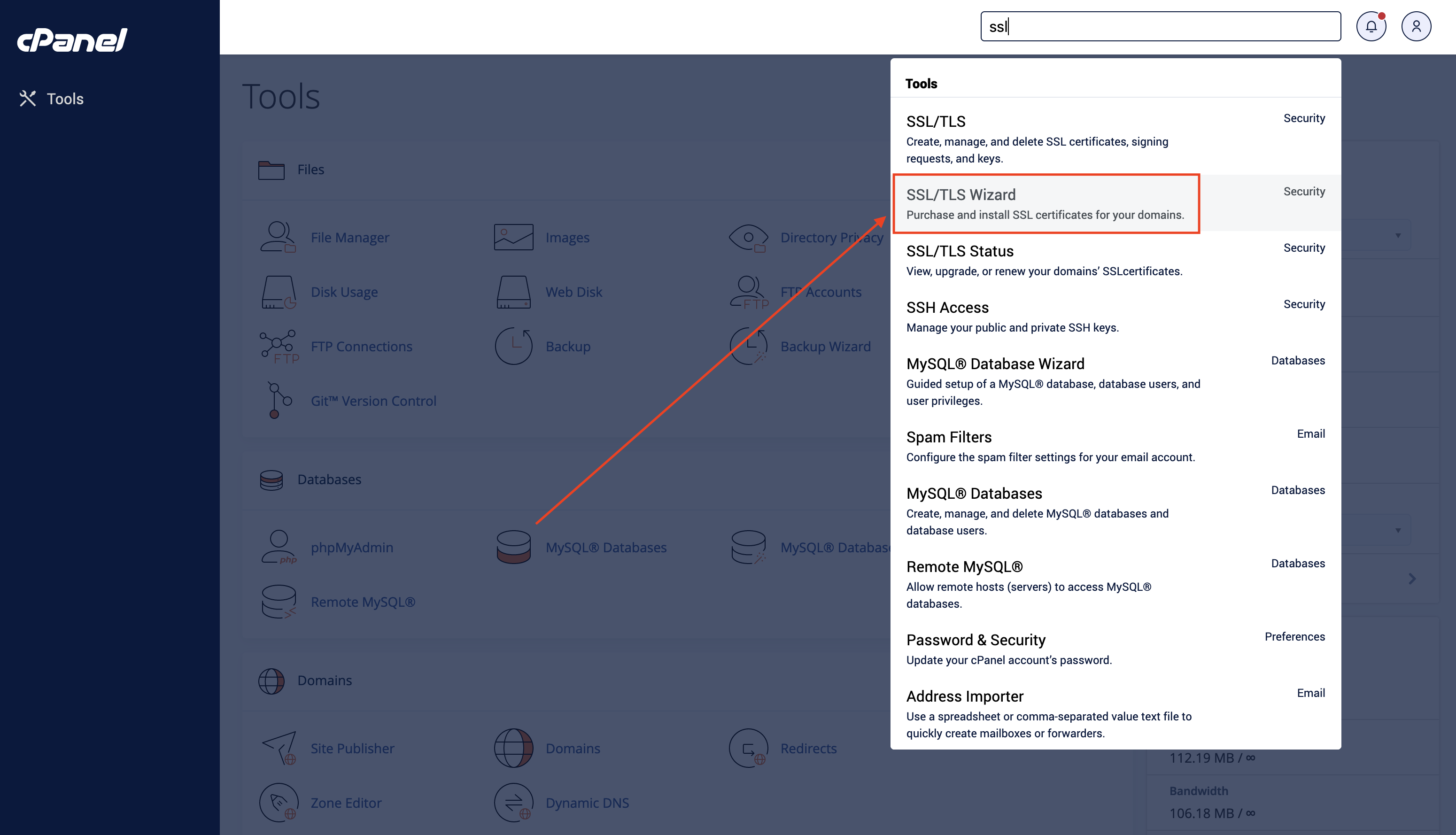
- Search for SSL/TLS wizard
- Select the domain you need to purchase an SSL for
- Select Comodo DV certificate, unless you are buying another domain type (aka Wildcard, etc.).
- Click Continue
- If not already logged into cpanel store you'll be prompted to login using the above credentials, if you are logged in click "Allow"
- Make the payhment using the card on the Cpanel Store account and check out.
- You will now be notified you have a Pending Certificate and just have to wait for it to be installed
- Once it's no longer pending, open the site and test and make sure it's been updated (may have to hard refresh a few time)
- Update the record for this SSL in the EE Sites spreadsheet in the SSL's tab


Renew Certificates
- Log into GoDaddy
- View My Products
- Scroll down to the SSL Certificates
- The soonest to expire are at the top of the list.
- Go through and make a list of the SSL's you need to renew (you'll need this later, too)
- Ignore any we aren't using anymore, just let them expire. If you have any doubt, ask.
- Renew any needed SSL's from the current month
- Go ahead and renew ones from the first week of the next month. This will give us some wiggle room or the next time we need to do this procedure.
- Go through and make a list of the SSL's you need to renew (you'll need this later, too)
Once you have your list, go ahead and add those to the cartOnce you have your list, buy new certificates for each ones.- When ready check out.
Sometimes you can find coupon codes to reduce the price.New certs should be about $52/yr although you may need coupon codes to achieve this. The Honey browser extension comes in handy for this. - MAKE SURE YOU SET THE SSL CERTS TO NOT RENEW AUTOMATICALLY!
Install Certificates
Using your list, we will now update each cert using the following procedure
- In GoDaddy, My Products, next SSL Certificates, click 'Manage All'
Find the certificate you need in the list and click on itSetup a new certificate. You'll need to input CSR's for each of the new SSL's.- Follow the verification steps.
, if needed for this certificate. Likely, you won't need to. - Once it's ready, you'll see the Download button
- Click Download
- Choose 'Apache' from the 'Server Type' dropdown, then click 'Download Zip File'
- Extract the zip so you can upload a single file from it (the .crt file with with the hex file name)
- Log into cpanel for the target site
- Go into SSL/TLS
- Click Certificates
- Upload the Certificate file
- Once uploaded, find the new cert, and click Install and then confirm the info and complete the installation.
- In a private browsing session, open the site and refresh the page until you can verify that the new cert is active.
- You can now delete any old, unused certs
- Be careful when you do this, don't delete any other active certs. Some environments have multiple SSL'd sites/urls
- Move onto the next site on the list until all sites are updated
Easy peasy!
The process is slightly different for pvapickupservice.com / cslpickupservice.com. See the wiki entry for that below